

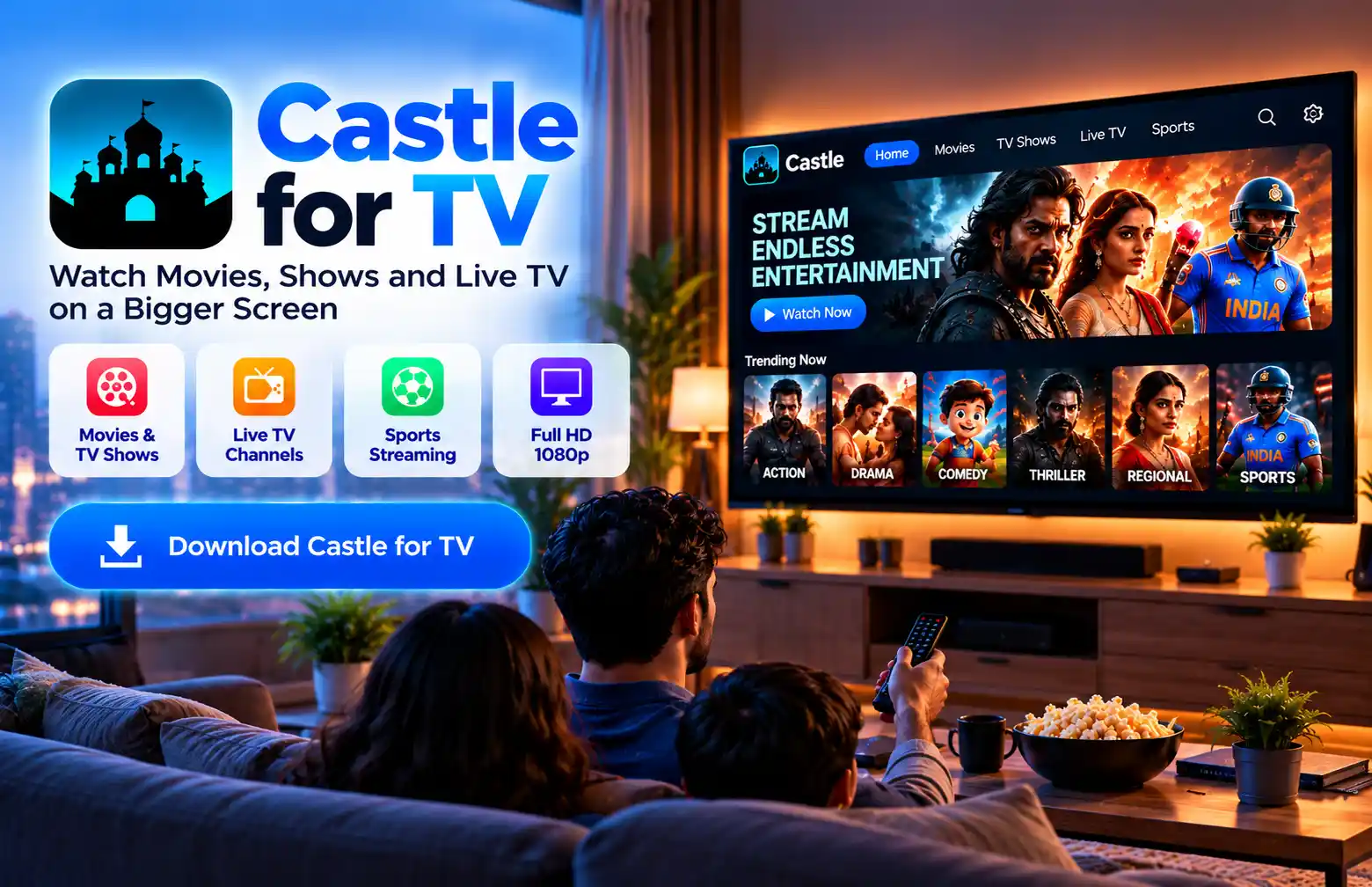
Want to watch movies, TV shows, and live content on a bigger screen? Castle for TV lets you watch content on Android TV, Google TV, and Amazon FireStick.
Castle is an Android app. You can install it on supported TV devices using its APK file. Just download the file from the official Castle website and follow the setup steps.
With Castle on your TV, you can watch your favourite content on a larger screen without using your phone. This guide explains which TVs support Castle, how to install it, and how to fix common issues.
What Is Castle for TV?
Castle for TV is the same Castle Android app that you can use on a phone, but installed on a TV device. It lets you watch movies, shows, and live content on a bigger screen.
To install Castle on a TV, you need its APK file from the official Castle website. The app is not installed through a TV app store.
Castle works on compatible Android-based TV devices, such as Android TV, Google TV, and FireStick.
The app supports video quality up to Full HD 1080p. You can also choose Castle Premium for access to the paid tier.
Which TVs Support Castle?
Castle does not work on every Smart TV. Support depends on the TV's operating system. Some TVs can install Android APK files, while others need an extra streaming device.
Here are the TV systems and devices you can use with Castle.
Android TV & Google TV
Castle for Android TV can run on compatible devices with Android 6.0 or above. Google TV also uses Android, so it can install APK files when the device allows it.
You can get the Castle APK from the official website and install it using your TV's browser or file manager.
Android TV Boxes
An Android TV box connects to your television using an HDMI cable. It lets you run Android apps on your TV.
Before installing Castle, check that your TV box has Android 6.0 or above. Also, make sure it has enough free storage for the app.
Amazon Fire TV & FireStick
Amazon Fire TV and FireStick use Fire OS, which is based on Android. Compatible FireStick devices can install Castle using an APK file.
You can use the free Downloader app to get the Castle APK from the official website. The steps are explained later in this guide.
Samsung (Tizen) & LG (webOS) Smart TVs
Samsung Smart TVs with Tizen and LG Smart TVs with webOS cannot install Android APK files directly. If you have one of these TVs, you can connect an Android TV box or FireStick through an HDMI port.
You may also use Castle Web in your TV browser if the web version is available and supported.
How to Install Castle on Android TV
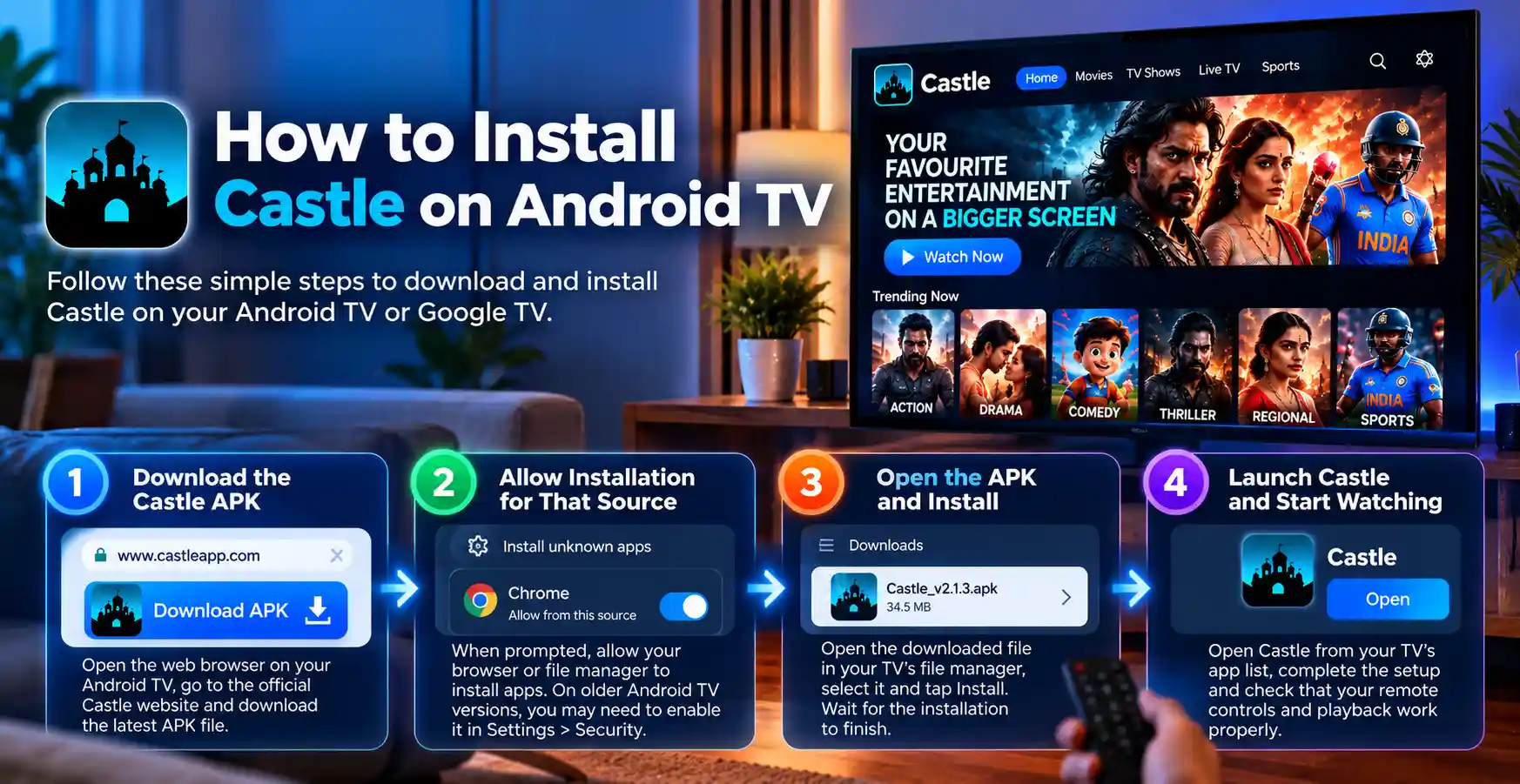
You can install Castle on Android TV using the TV's browser or a file manager. Before you start, make sure your device has enough storage for the 34.5 MB APK file.
Follow these steps to install Castle on Android TV or Google TV.
Step 1: Download the Castle APK
Open the web browser on your Android TV or Google TV.
Visit the official Castle website and find the APK download section. Download Castle version v2.1.3, released on 30 September 2026.
Wait for the 34.5 MB file to finish downloading.
Step 2: Allow Installation for That Source
Your TV may ask for permission to install apps from the browser or file manager.
On newer Android TV versions, follow the on-screen steps to allow installation from that app. On older versions, you may need to open Settings > Security and turn on the option to install apps from unknown sources.
You do not need to turn off Google Play Protect.
Step 3: Open the APK and Install
Open the file manager on your TV and go to the Downloads folder.
Find the Castle APK file and select it. Tap Install when the option appears.
Wait for the installation to finish. Then select Open to launch Castle.
Step 4: Launch Castle and Check the Remote
Open Castle from your TV's app list and complete any setup steps shown on the screen.
Use the arrow buttons on your remote to move through the app. Play a video to check if the remote, sound, and video playback work.
How to Install Castle on FireStick (Downloader Method)
You can install Castle on FireStick using the free Downloader app. This app lets you download APK files and install them on supported Fire TV devices.
Follow the steps below to download Castle from the official website and install it on your FireStick.
Step 1: Enable "Install Unknown Apps" for Downloader
First, install the Downloader app from the Amazon Appstore if you do not already have it. Next, open your FireStick settings and go to:
Settings > My Fire TV > Developer Options > Install Unknown Apps
Find Downloader in the list and allow it to install apps.
If you cannot see Developer Options, you may need to enable them first. The menu can differ by Fire OS version.
Step 2: Get the APK via Downloader
Open the Downloader app on your FireStick. Select the URL field and enter the official Castle website's APK download address.
Download the latest Castle APK. Version v2.1.3 is about 34.5 MB in size. Wait until the download is complete.
Step 3: Install and Open
When the download ends, select Install on the screen. Wait for FireStick to finish installing Castle. Then open the app from your Fire TV apps list.
Complete the setup and use your remote to check the app's navigation and playback.
Castle TV Requirements & Performance Tips
Before you download Castle for TV, check your device's Android version, storage, and internet connection. These details can help you avoid problems during installation and playback.
| Detail | Requirement |
|---|---|
| App version | v2.1.3 |
| APK size | 34.5 MB |
| Android version | Android 6.0+ |
| Fire TV support | Compatible Fire OS devices |
| Free storage | About 50 MB |
| Maximum video quality | Full HD 1080p |
| Release date | 30 September 2026 |
| Paid tier | Castle Premium |
Here are a few tips to help Castle work better on your TV:
- Keep about 50 MB of free storage for the APK and app data. You may need more space for updates.
- Use a stable internet connection to reduce buffering.
- Connect to 5 GHz Wi-Fi or Ethernet if your TV supports it.
- Update Castle when a new version is available on the official website.
- Close apps you are not using to free up memory.
- Restart your TV or FireStick if Castle stops responding.
Why Use Castle on a TV?
Castle for TV lets you watch content on a larger screen. You can use your TV remote to browse the app on compatible devices and enjoy movies or shows with other people.
Here are some reasons to use Castle on your television.
Bigger Screen for Movies, Shows and Live Content
Watch movies, TV shows, and live content on your TV instead of your phone. Castle supports video quality up to Full HD 1080p.
Remote-Friendly (D-pad) Navigation
You can use the arrow buttons on a compatible TV remote to browse content and select videos. Check that the buttons work after installing the app.
Comfortable Shared and Family Viewing
A TV screen gives everyone a better view when watching together. You can sit back and watch a film or show with family or friends.
Troubleshooting Castle on TV
Sometimes Castle may fail to install, buffer during playback, or stop working. These issues can happen because of low storage, weak internet, or device limits.
Try the following fixes if you face problems while using Castle on your TV.
Castle Won't Install
First, check if your Android TV runs Android 6.0 or above. FireStick users should check that their Fire OS device supports APK installation.
Make sure your device has enough free storage and the APK download is complete. Also, check that you have allowed the browser or Downloader to install apps.
Remember that Samsung Tizen and LG webOS TVs cannot install Android APK files directly.
Buffering During Playback
A weak or unstable internet connection is a common reason for buffering.
Try using 5 GHz Wi-Fi or an Ethernet cable. You can also lower the video quality, restart your router, or stop other downloads that use your internet connection.
App Crashes or Won't Open
Restart your TV or FireStick and try opening Castle again.
If the app still crashes, check your free storage and clear the Castle app cache from your device settings.
You can also download the latest APK from the official Castle website to update the app.
Remote Navigation Issues
If your TV remote does not work well with Castle, check whether a newer app version is available. Updates may include fixes for the remote's arrow buttons, also called D-pad controls.
Restart Castle and test your remote in other TV apps. Some devices may have limits when using Android phone apps on a TV.
FAQs
Here are answers to common questions about Castle for Smart TV, FireStick setup, Castle Premium, updates, and buffering.
Can I Install Castle on a Samsung or LG Smart TV?
No, you cannot install the Castle APK directly on Samsung TVs running Tizen or LG TVs running webOS.
You need a compatible Android TV box or FireStick to run the app on these televisions. Castle Web may also work through a supported TV browser if available.
Do I Need the Downloader App for FireStick?
Downloader is one way to install Castle on FireStick. It lets you get the APK from the official Castle website and install it without moving files from another device.
Other APK installation methods may also work on supported Fire TV devices.
Can I Use the Same Castle Premium Account on My Phone and TV?
Yes. One Castle Premium account supports up to 3 phones and 2 TVs.
You can sign in with the same Castle Premium account on your supported phone and TV devices.
How Do I Update Castle on My TV?
Open the official Castle website and download the latest APK.
Find the downloaded file on your Android TV, Google TV, or FireStick. Open it and follow the steps to update Castle.
The confirmed version is v2.1.3, released on 30 September 2026. Check the official website for any newer version.
Why Is Castle Buffering on My TV?
Castle may buffer if your internet connection is slow or unstable. Weak Wi-Fi signals can also cause videos to pause.
Try connecting to 5 GHz Wi-Fi or Ethernet. You can also lower the video quality or restart your TV and router.
Download Castle for TV Now
Get Castle for TV on your compatible Android TV, Google TV, or FireStick and watch movies, shows, and live content in up to Full HD 1080p.
Visit the official Castle website to download the latest Castle APK and follow the steps for your TV device.
You can also visit the Castle Home, Castle for PC, and Castle Web guides to learn about other ways to use Castle.
Hemingway report
Copyscape report